Showing posts with label SSD. Show all posts

Thursday, January 23, 2014

How to restore your SSD to peak performance

del.icio.us Tags: ,
  • Jan 16, 2014 3:30 AM
Jon L. JacobiFreelance Writer, PCWorld

Back in the days when mechanical hard drives with spinning platters were the norm, you could simply hand your old hard drive to a deserving relative or friend as an upgrade, get a thank you, and call it a day. It’s not so simple with today’s solid-state drives.

In many cases, used SSDs simply aren’t as fast as newer ones. The biggest issue in retasking, reselling, or even maintaining an SSD for a prolonged period stems from an inconvenient characteristic of NAND flash memory: Previously written cells must be erased before they can be rewritten with new data. If the SSD is forced to reuse cells rather than use new ones while storing data, performance will plummet.

To avoid this problem with NAND flash memory, modern SSD controllers use a number of tricks, including building in extra capacity that users can’t touch—a technique known as over-provisioning. There’s also a command called TRIM that tells an SSD when blocks of memory are no longer needed and can be consolidated and erased.

Sounds good, right? But there’s a catch.

Better in theory than in practice

inside intel sata ssd nand Intel

NAND memory inside an Intel enterprise-class X-25E Extreme SATA SSD.

Not all garbage collection (as the cleaning up of an SSD’s NAND is known) is created equal. It doesn’t run constantly, and some older operating systems don’t even support the TRIM command. As such, more “used” NAND cells are left hanging around on your SSD than you’d suspect, according to nearly every vendor and data-recovery specialist I consulted

After prolonged use, these idle cells can add up to a big hit on your SSD’s performance. That’s not good.

Simply deleting files and repartitioning and formatting your drive won’t do the trick, however, as those operations take place at levels above where true garbage collection occurs. In fact, due to the total absence of utilities that force complete garbage collection, there’s only one way to return an SSD to pristine, like-new condition—the ATA secure-erase command.

Secure erase to the rescue

Secure erase, a function built into every ATA-based drive since 2001, erases everything on a drive and marks the cells as empty, restoring the drive to factory-fresh default performance.

Once upon a time, you could invoke secure erase only via command-line utilities such as Linux’s HDparam or the DOS-based HDDerase, developed by the University of California San Diego (with funding from the NSA, incidentally). But now, many SSD and hard-drive vendors provide a free utility—such as OCZ’s ToolBox, Samsung’s Magician, or Seagate’s SeaTools—that provides a secure erase capability.

Note that while the command is standard, many vendor utilities work only with their company’s products. If your vendor doesn’t provide a secure-erase command, you can use the DriveErase utility found in the stellar Parted Magic software.

Got all that? Good. Here’s how to restore your SSD to top performance, step by step.

How to restore your SSD to peak performance

First things first: If you have data on the SSD you’d like to retain, back it up. If you’re worried only about backing up files, simply drag and drop them onto a flash drive or external hard drive, or use your favorite backup program.

If you have a working operating system that you’d like to keep, however, use an imaging program such as Acronis True Image or R-Drive Image that copies everything. Do not use Windows System Recovery unless you’re restoring the data to the same drive. It won’t restore to a smaller drive and it sometimes hiccups even with a similar-size drive that has plenty of room.

Next, download the drive utility provided by your SSD vendor, or snag Parted Magic.

Before you get down to brass tacks, disconnect all other drives and boot from a flash drive to perform the erase procedure, to avoid accidentally overwriting the wrong drive. Parted Magic is a great option for this, since it works as a bootable flash drive. If disconnecting your other hard drives is too much hassle, make darn sure you’ve selected the correct drive to erase throughout this procedure. Secure erase is irrevocable.

Now run the secure-erase function. The exact method varies by program. PCWorld’s guide to securely erasing your hard drive explains how to activate secure erase in Parted Magic, which runs on a bootable flash drive. Some SSDs implement the enhanced version of secure erase by default—which also deletes the drive’s housekeeping data—but if an enhanced erase option is available, you might want to use it. Definitely use it if you’ve been doing work for the CIA.
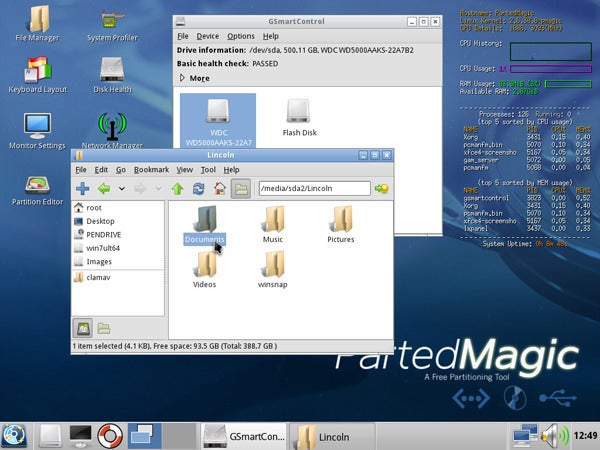
parted magic

Parted Magic contains all the tools you need to restore an SSD to top performance. 

The secure-erase process should take just a few minutes on a modern SSD. (Traditional hard drives can take hours, by comparison.)

Once the process is done, repartition and format the drive if you intend to copy data back to it. Parted Magic handily provides a full partition editor for this purpose, but you can use Windows’ own Drive Management utility (Control Panel > System and Security > Administrative Tools > Create and format hard disk partitions) to do the same task. Most commonly, you’ll want to use the full capacity of the SSD in a single partition and format it as NTFS.

Once that’s done, you’re good to go. Dump any data you may have saved back onto the drive and bask in the super-speeds of your good-as-new SSD. Check out PCWorld’s guide to prolonging the life of your SSD to keep your drive humming along for years to come

Sunday, April 21, 2013

Micron 960 GB 2.5" Internal Solid State Drive

Micron 960 GB 2.5" Internal Solid State Drive - Specifications

$555.99 - $987.95 (4 stores)

Specifications

Transform your system's performance. New interfaces and multitasking demands require more from your system than perhaps ever before. From connecting instantly with friends and accessing apps, websites, and playlists online, to simultaneously streaming videos and downloading files, your computer is faced with an entirely new set of performance expectations that a hard drive struggles to meet. That's where the Crucial M500 SSD comes in. With data transfer speeds that are radically faster than a hard drive, the Crucial M500 SSD isn't just a storage upgrade - it's a complete system transformation. From its nearly instantaneous boot times, powerful data transfer speeds, increased multitasking capability, and rock solid reliability, the Crucial M500 delivers dramatic performance gains - all at an affordable price.

Monday, April 8, 2013

Fusion-io bumps its ioFX super-SSD to 1.6TB, announces HP Workstation Z integration

del.icio.us Tags: ,
By
Joe Pollicino posted Apr 7th, 2013 at 12:30 PM 1
del.icio.us Tags: ,


Fusionio bumps its ioFX superSSD to 16TB, announces HP Workstation Z integration

We have a feeling graphics artists are going to be begging their studios for Fusion-io's latest ioFX super-SSD. After receiving critical acclaim for its 460GB version, the company has today introduced a massively-speced 1.6TB variant at NAB. Despite the space increase, the new unit is not bigger than its older sibling. In related news, HP has also signed on to integrate ioFX into its HP Z 420, 620 and 820 all-in-ones, and it'll also give current workstation owners the option to simply add the card to their existing machines. Fusion won't be releasing any details about pricing for the 1.6TB ioFX just yet -- that'll remain under wraps until its released this summer. For now, movie makers can net the 460GB one for $2K (about $500 less that its release price).

Tuesday, February 5, 2013

Intel shrinks its SSDs, aims for tablets, smartphones

del.icio.us Tags:

Intel's new Solid-State Drive 525 packs performance identical to a standard 2.5-inch SSD into a device one eighth of the size, according to the company.

The SSD 525 Series comes in 30GB, 60GB, 90GB, 120GB, 180GB, and 240GB sizes, and uses the same 25nm memory architecture as Intel's larger solid-state options. The drives use mini-SATA connectors, which allow them to be plugged into smaller PCIe slots common to notebooks while still providing a full SATA 6GB/s data rate.

The 120GB and 180GB models are already shipping, and Intel has promised that the rest of the drive sizes will be available within the quarter.

Entree into the tablet/smartphone market?

The diminutive new line could help raise Intel's profile in the mobile marketplace—despite its desktop and laptop dominance, the company has not seen its processors widely used in smartphones and tablets, and could benefit from an improved reputation among mobile OEMs.

Intel also hopes that the SSD 525 line will appeal to embedded device makers, for applications like digital signage and in-flight entertainment.

Intel says that the SSD 525 series offers 50,000 I/O operations per second of random read speed and 550MB/s of sequential read, as well as 80,000 IOPS random write and 520MB/s sequential write—the same numbers as the larger SSD 520 series.

Independent testing by noted review site AnandTech found that the SSD 525 line was "almost equal" to the best of the full-size solid-state drives currently on the market.

Saturday, December 29, 2012

Velocity Solo X2 review: Teach an old PC new SATA 6-gbps tricks

del.icio.us Tags: ,

Jon L. Jacobi

del.icio.us Tags: ,,

If your PC lacks a SATA 6-gigabits-per-second interface, you can't get top performance out of any of the latest consumer-grade solid-state drives. Such drives bump up against the 6-gbps limit of that bus, while the older second-generation SATA interface maxes out at just 3 gbps. Apricorn's Velocity x2 should remove that roadblock for you.

My main system sports a circa-2009 Intel D58SO motherboard. It has a great feature set, but it predates third-generation, 6-gbps SATA. The only way to upgrade such a beast is via a PCIe adapter card with a SATA 6-gbps interface, of which the market has plenty to choose from. I tried installing one of those a couple of years ago, but it gave me blue screens. SSDs at that time weren’t nearly as fast as they are today, so I saw no real reason to upgrade. But with SSD performance now topping 600 MBps, it’s time.

Lo and behold, Apricorn contacted me about its Velocity Solo PCIe cards. These will not only add SATA 6-gbps capability to any system with an available PCIe slot, but they’ll also serve as a caddy for a single SSD. Apricorn sent two cards for me to evaluate: the $50 Velocity x1 and the $99 Velocity x2. I tried both, and recommend one.

Apricorn's Velocity Solo x2 will endow your older computer with two SATA 6-gbps interfaces. You can bolt one 2.5- or 3.5-inch SSD right to the card.

A 6 gbps Kingston HyperX 3K drive attached to my motherboard’s second-generation SATA interface read data at 227 MBps and wrote data at 236 MBps while running the synthetic benchmark CrystalDiskMark 3. Surprisingly enough, a much faster OCZ Vertex 4 SSD mounted on the Velocity x1 delivered slower performance: It read at only 203.3 MBps and wrote at 196.5 MBps.

When I paired the Vertex 4 with Apricorn’s Velocity Solo x2 card, however, the SSD's numbers jumped to 348.1 MBps reading and 323.2 MBps writing—a substantial improvement beyond what is possible with the second-generation SATA interface. Attaching the Kingston HyperX 3K to the Velocity Solo x2, meanwhile, improved its numbers to 322.1 MBps reading and 239.6 MBps writing. That considerably faster read performance made my system feel much more responsive.

The reason for the two cards’ performance disparity is that the x1 uses only a single PCIe 2.0 lane, while the x2 employs two lanes (and must be installed in at least a PCIe 2.0 x2 slot as a result). Since each PCIe 2.0 lane is capable of transferring data at 500 megabytes per second (or 3.9 gigabits per second) in each direction, two PCIe lanes are necessary to satisfy the requirements of the SATA 6-gbps interface. Both Velocity Solo cards are outfitted with a standard female SATA connector for attaching a second drive, and both cards are bundled with Apricorn’s EZ Gig software for cloning your existing hard drive to your new SSD.

I can't recommend the Velocity Solo x1, as the SSDs I mounted to it performed more slowly than they did when connected to my motherboard’s second-generation SATA interface. The Velocity Solo x2, on the other hand, delivered a dramatic improvement, both during testing and subjectively. My only real qualm is the x2's $99 price tag, which is steep compared with the cost of some SATA 6-gbps interface cards (such as the Syba HyperDuo) that don’t have the handy mounting caddy. The lowest street price we could find as of December 18, 2012, was $95.

Note: Don't miss our SSD roundup, where you'll find a detailed explanation of how SSDs work, plus links to reviews of seven new models as of December 18, 2012.

Apricorn Velocity Solo X2 SATA 6Gbps SSD Upgrade Kit

3/5

$95*

COMPARE

View full product specs »

BOTTOM LINE

If your PC doesn't have a SATA 6-gbps interface, this device adds it, caddies one drive, and let's you attach another via a cable.

*Price when rated

$95

PROS

  • Adds SATA 6-gbps capability to older desktop motherboards
  • Caddies a single SSD
  • Includes a second 6-gbps interface to host another drive

CONS

  • Expensive
  • Requires at least a x2 PCIe slot